Designed, not generated
Above: Archivo at width 62, weight 640, capitals. The line under it: the same font, left at its defaults.
AI can make a page in seconds. Getting one that looks designed takes the same things good design always took: context, references, a system, the fundamentals, an idea of its own, and review. AI tells are only one part of it.

You can spot an AI-made page from across the room. A purple gradient on the headline, a little sparkle badge above it, two buttons underneath, and a row of cards with an emoji in each one.
And a better prompt doesn’t make it go away. I’ve given AI detailed prompts and full briefs, and the gradient, the sparkle and the card grid still come back, along with spacing that follows no system, contrast that fails and basics it never checked. That isn’t the AI’s fault, exactly. It builds from the average of every page it has seen, and a prompt, however good, only moves it so far from that average.
I direct AI to design and build most of what I make now, including client work that ships to production. Over the past year I’ve found that getting design worth shipping out of AI takes the same things good design has always needed. This post walks through all of them, using one small test so you can see each step.
Here’s what goes into it, in the order I do it:
AI tells get most of the attention, but they’re one step of eight. The rest of this post goes through each step with the same small test.
The test
I invented a product: Margin, a weekly planning app for freelancers. Then I had AI make three things for it: a landing page, a six-slide pitch deck, and an intranet page about how a team used AI on a project (the kind of internal update a lot of us now make with AI every quarter).
Each one exists in three versions:
- Generated. Straight from a fresh AI session, nothing edited afterwards. Each started from a short description like “Build a landing page for Margin, a weekly planning app for freelancers.” A longer prompt mostly changes the content, not the look: on real projects with detailed briefs, the same kinds of tells still turn up.
- Cleaned. The same page, same colours, same layout, with the AI tells found and fixed.
- Designed. The same direction again, taken further with an idea from the product, real references, a design system and my design skills kit.
The landing page hero at each stage
Same product, same short description to start from. The generated page is live: fix its tells one by one.
visual tell copy tell invented fact
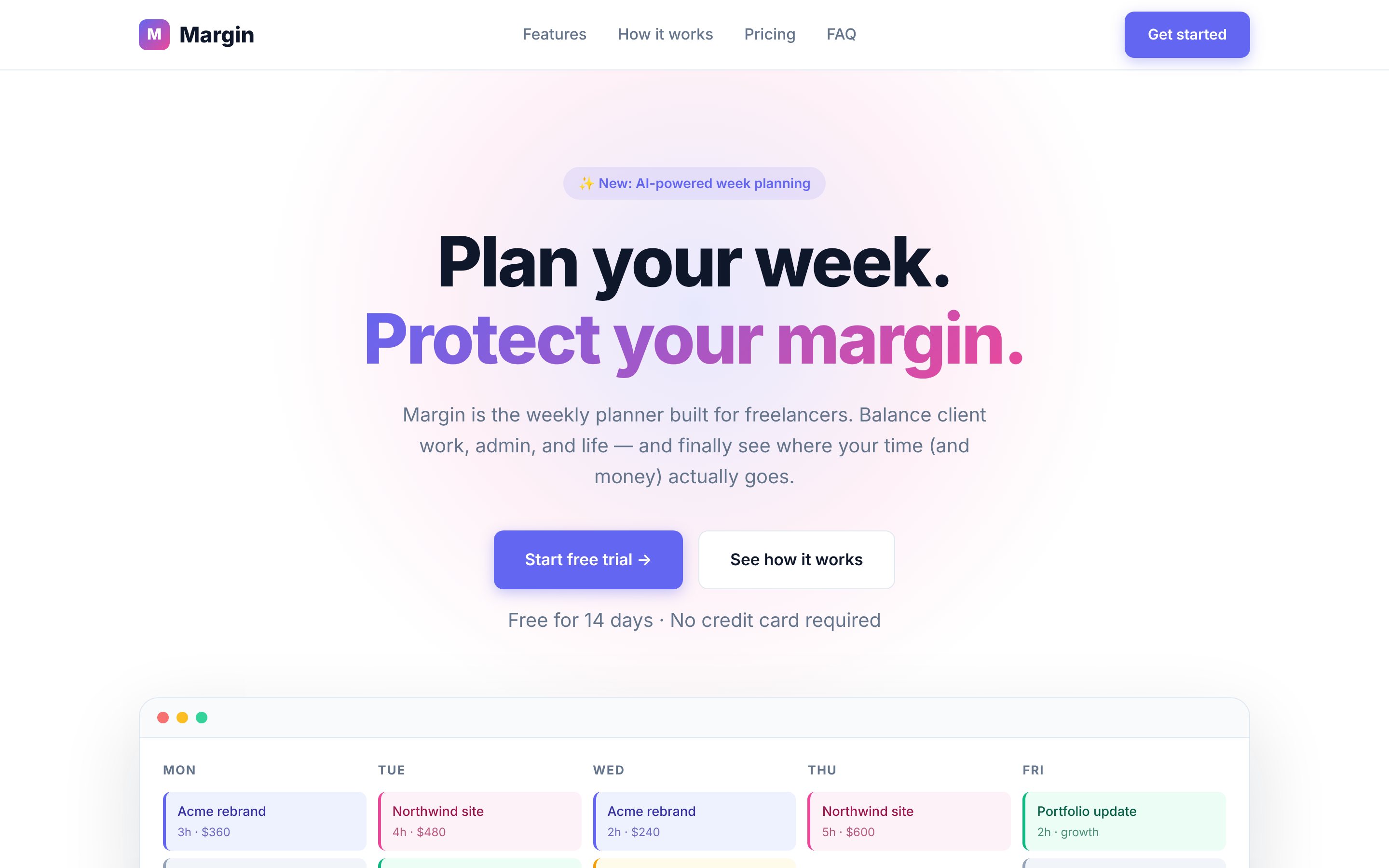
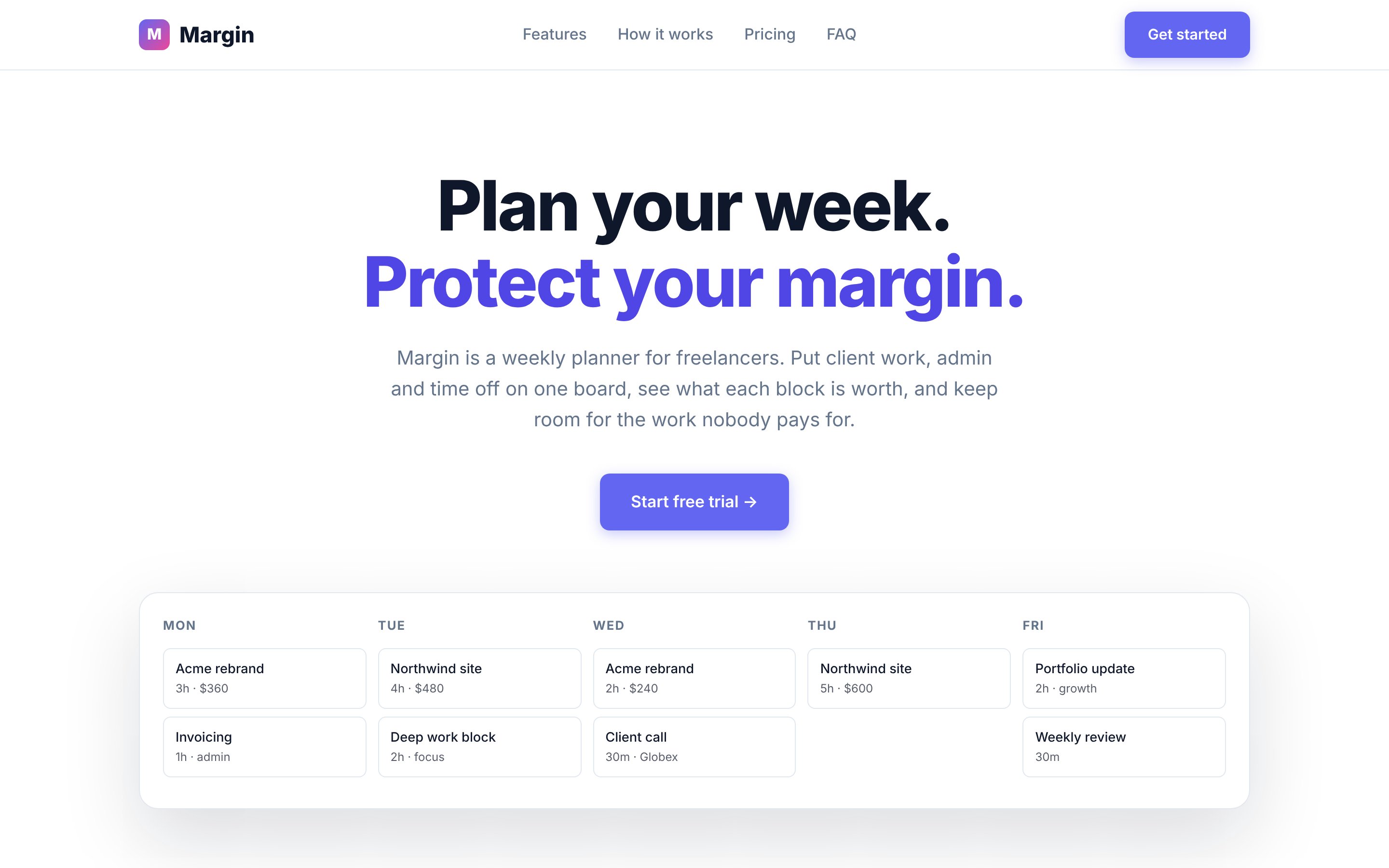
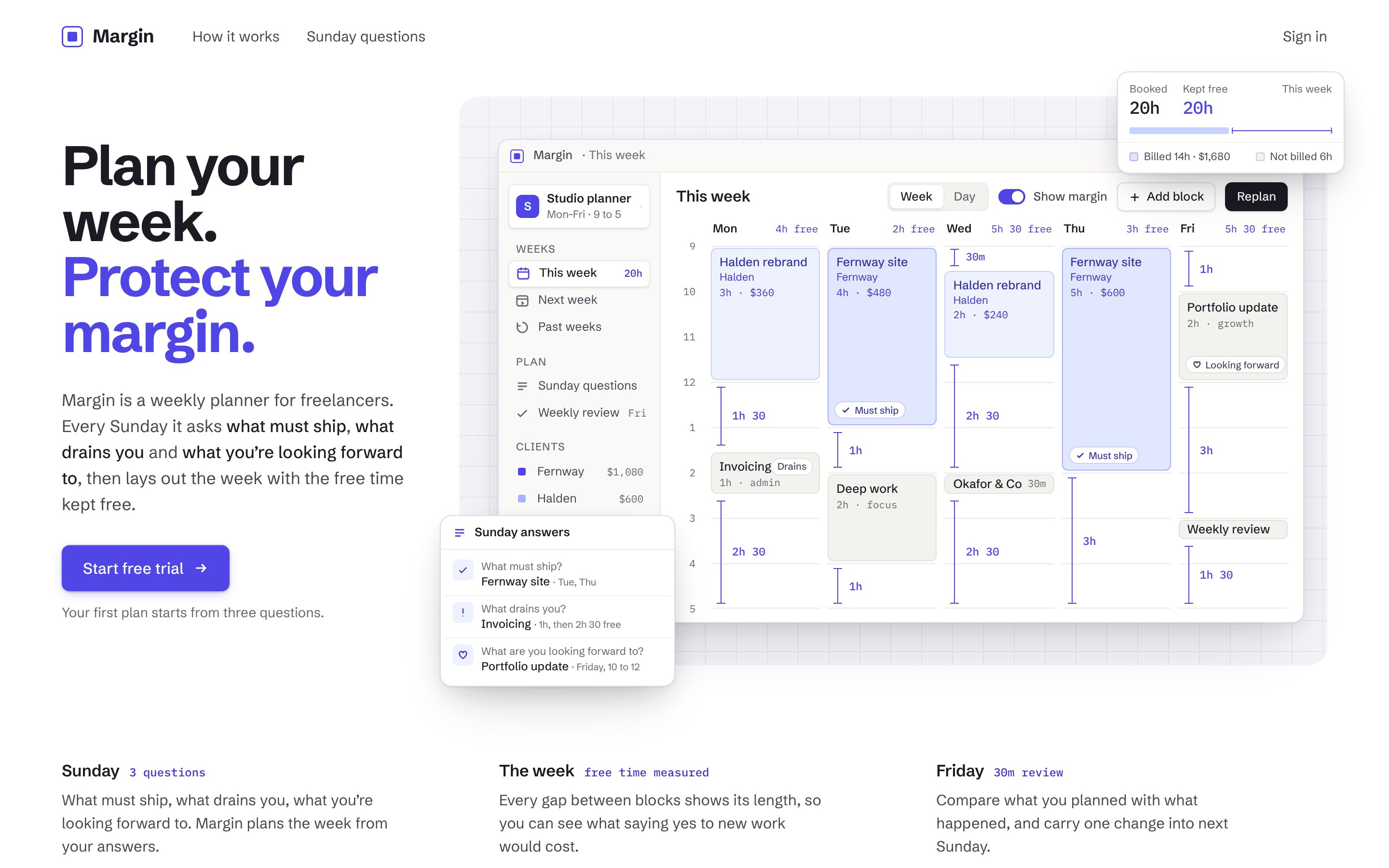
Showing: stage 1, generated, all tells on
Scaled from 1440 px wide
Each switch fixes one tell inside the page. Focus or hover a tell to find it on the page.
Tells on this page · switch on to fix9 of 9 showing
The difference between 1 and 2 is what you can fix in an afternoon. The difference between 2 and 3 is the rest of this post.
1. Start with context, not a prompt
A brief fixes one problem outright: invented facts. Where AI has no information, it doesn’t leave a gap. It fills it in.
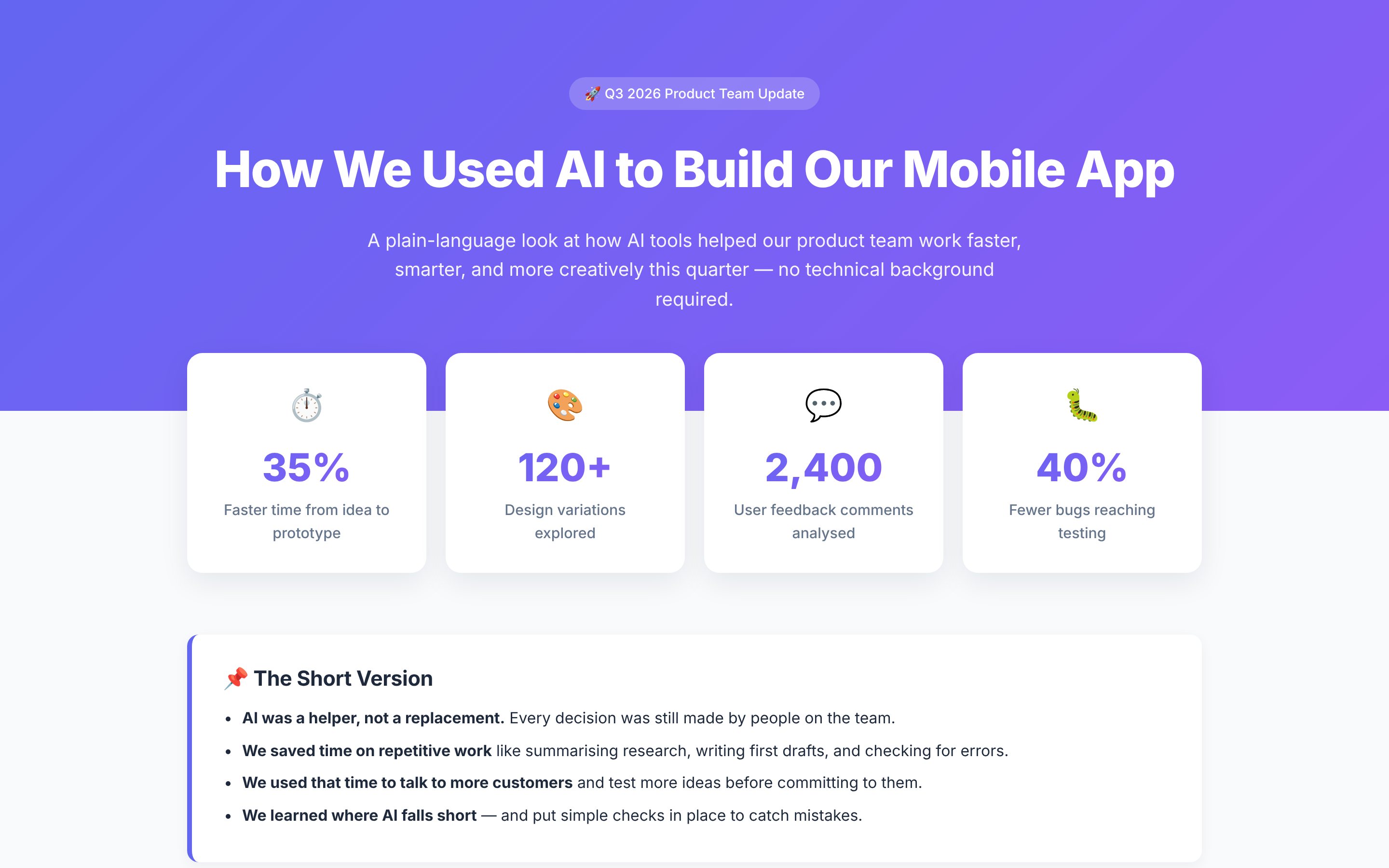
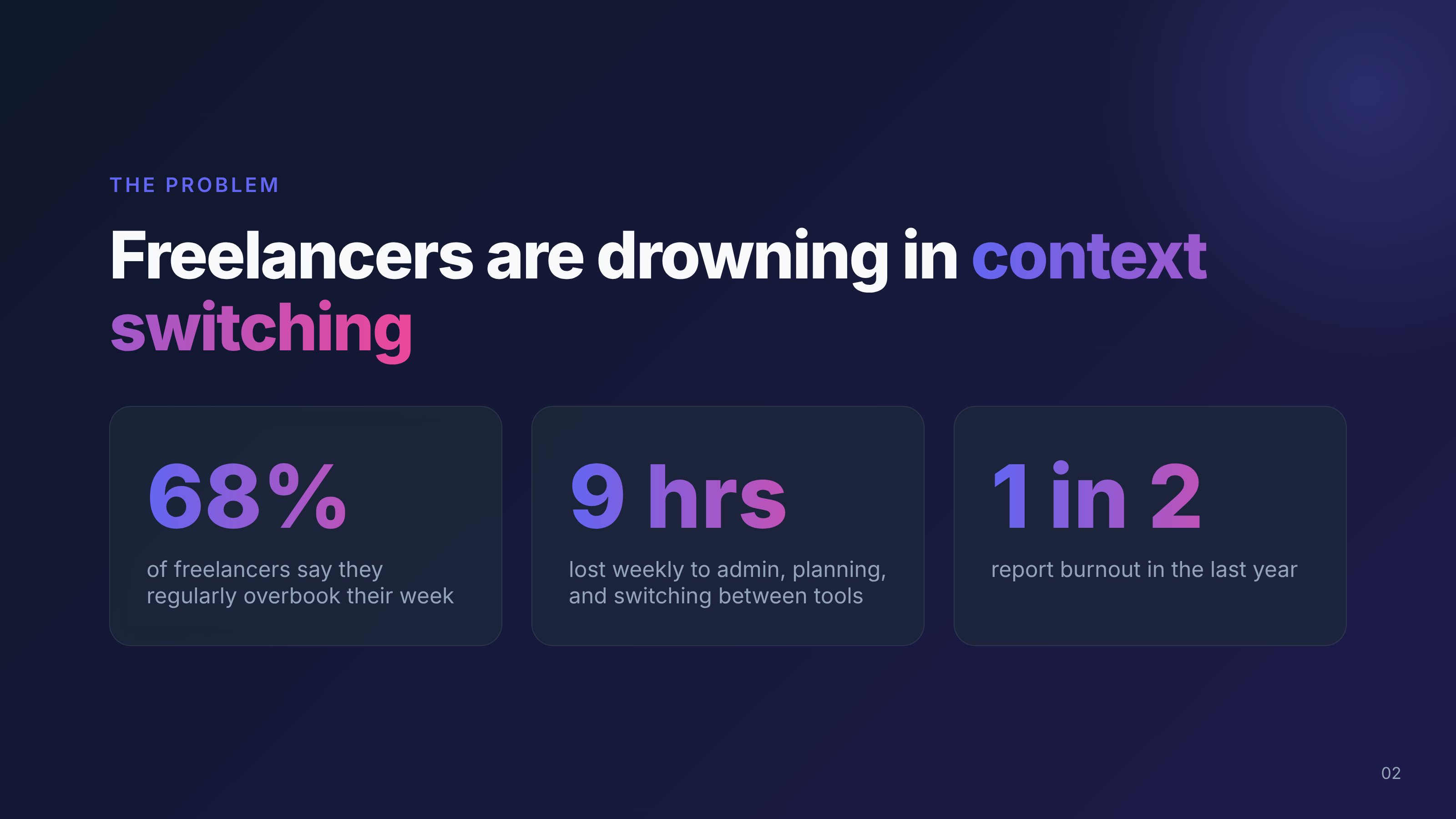
The landing page offered “Free for 14 days, no credit card required”. The deck opened with “68% of freelancers regularly overbook their week” and “9 hours lost weekly”. The intranet page reported “35% faster” and “40% fewer bugs”. None of these came from anywhere. The clearest example: the landing page priced the Pro plan at $9 a month, and the deck, made from the same description, priced it at $12. Both were invented, so they don’t even agree with each other.
The fix is a brief. It doesn’t need to be long. Mine are usually seven lines:
- Who it’s for
- What the page has to do (three to five things, in order)
- The one action you want people to take
- Tone of voice, with one example sentence
- Colours and type, if you have them
- What to avoid, and why
- What “done” means (works on a phone, every number has a source)
It also helps to name the job of the page. The team behind the Impeccable design skill sorts pages by purpose: persuade, operate, read, or experience. A landing page persuades, a dashboard operates, a report is read. Each needs a different kind of design, and saying which one up front stops the AI reaching for the same template every time.
If you have brand guidelines, give them. If you don’t, decide the basics before you build: two or three colours with a job each, a heading font and a body font, and a sentence that sounds like you.
A brief stops the AI inventing facts. It doesn’t stop the look. With a full brief in hand, AI still reaches for the same gradients, card grids and centred heroes, and still skips the checks nobody told it to run. That’s what the next seven steps are for.
2. Show it what good looks like
AI averages everything it has seen. References are how you pull it away from the average.
Before I start anything visual, I collect two or three references and say what I want from each. Not “make it like this”, but “the layout rhythm from this one, the type from that one, the calm from the third”.
Where I look:
- Dribbble and Behance for visual craft and type
- Mobbin for real screens and flows from shipped apps (useful when it has to work, not just look good)
- Land-book, Godly and Awwwards for websites
- Pinterest or Are.na for mood boards
- Products I actually use and admire
Screenshots work better than descriptions. The Hallmark design skill has a mode built on exactly this idea: give it a reference and it studies the structure (how the page is put together), not the pixels. That’s the right way to use references. You’re borrowing decisions, not copying a design. Never hand over a single source and ask for a copy of it.
3. Explore before you commit
The first idea is the average idea. So I ask for three directions first, written in a few lines each, and pick one with a reason.
For the designed version of Margin, the three were:
- Measured margin: the week as the hero, with every free gap measured like a clearance on an architect’s drawing
- Marginalia: the Sunday answers sit in the page’s own margin, each one linked to the day it shaped
- Room to breathe: the week appears packed, then the blocks slide apart to show the free time between them
All three kept the same white and indigo direction. I picked the measured margin, because it turns the product’s promise into something you can see at a glance: how much room is left, day by day.
It takes ten minutes, and it’s the step that most often turns a page from “fine” into something with an idea in it.
4. Give it a system
A design system sounds like a big-company thing. For AI work, a small one is the most useful thing you can write down:
- Colours, each with a job (background, text, the one accent, a calm secondary)
- A type scale: five or six sizes, not twenty
- A spacing scale, so gaps aren’t random
- One corner radius
- A short list of defaults to question, each with its reason
Write it down as a file, not just a prompt, so every screen and every new session follows the same rules. Otherwise each new page drifts a little, and after ten pages nothing matches.
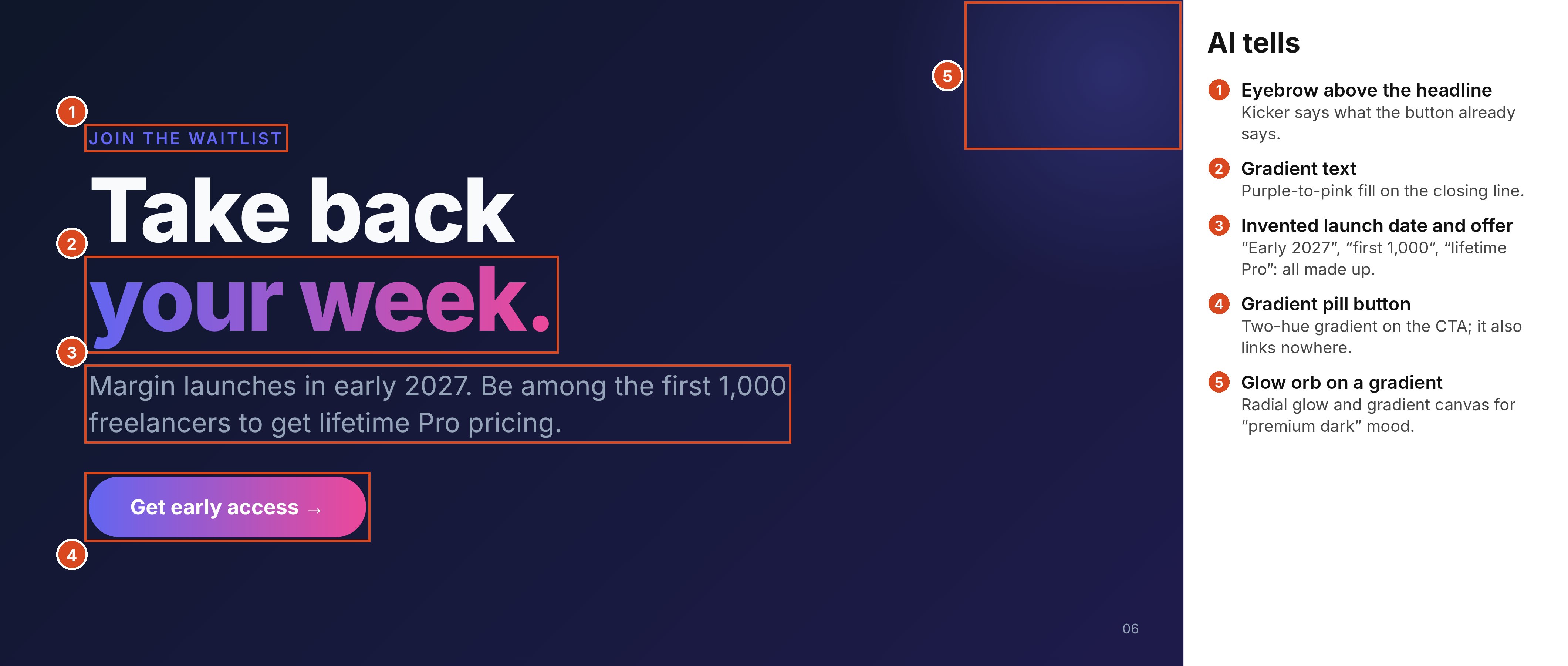
This is also where your brand guidelines live. I used to call the last part a “never” list, but there’s no such thing as never in design. A gradient can be exactly right; gradient text on a headline because the AI always reaches for it isn’t. So every rule gets its reason, and its place. Mine starts with gradient text, emoji as icons and cards around everything. The one real never is a number nobody gave me.
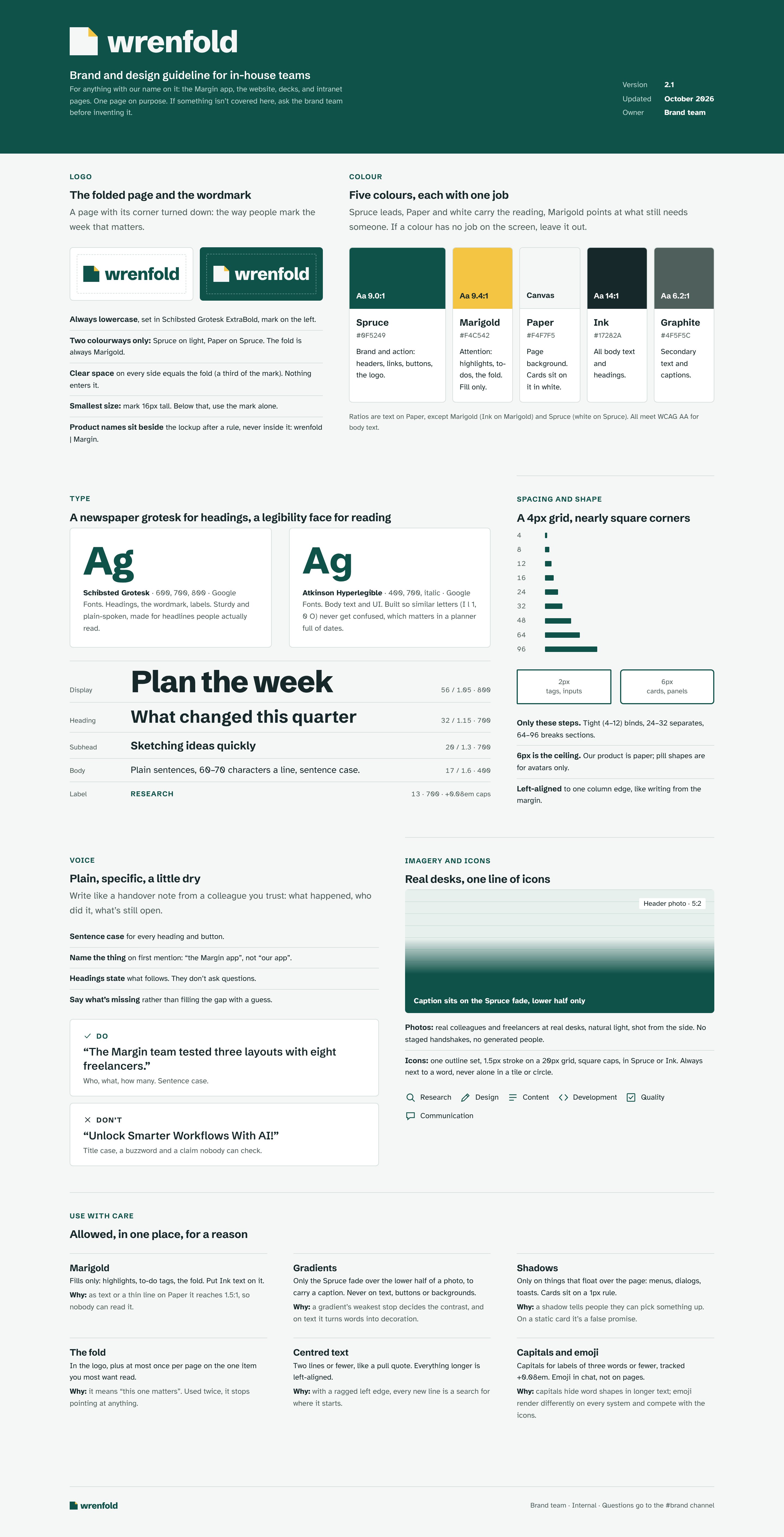
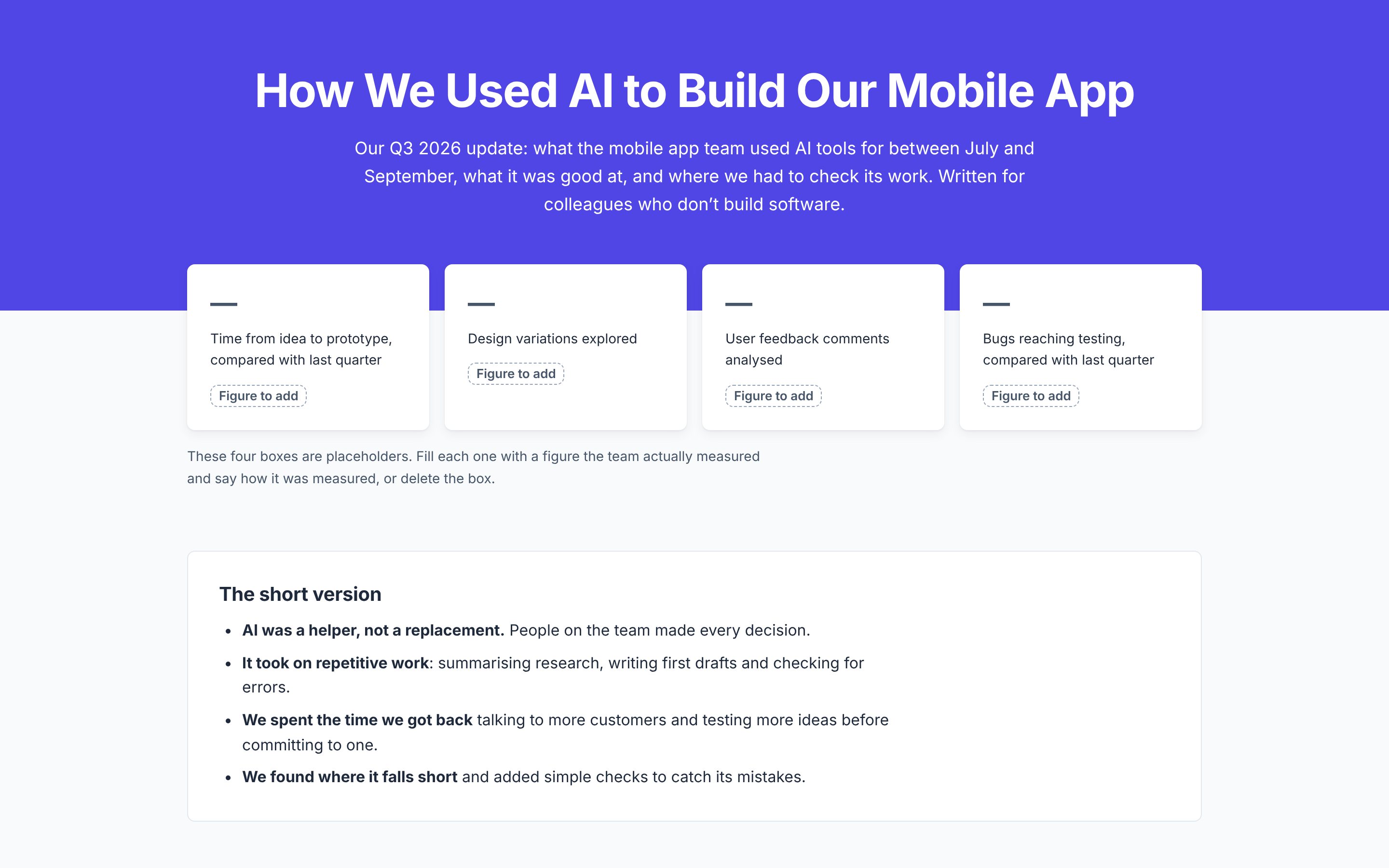
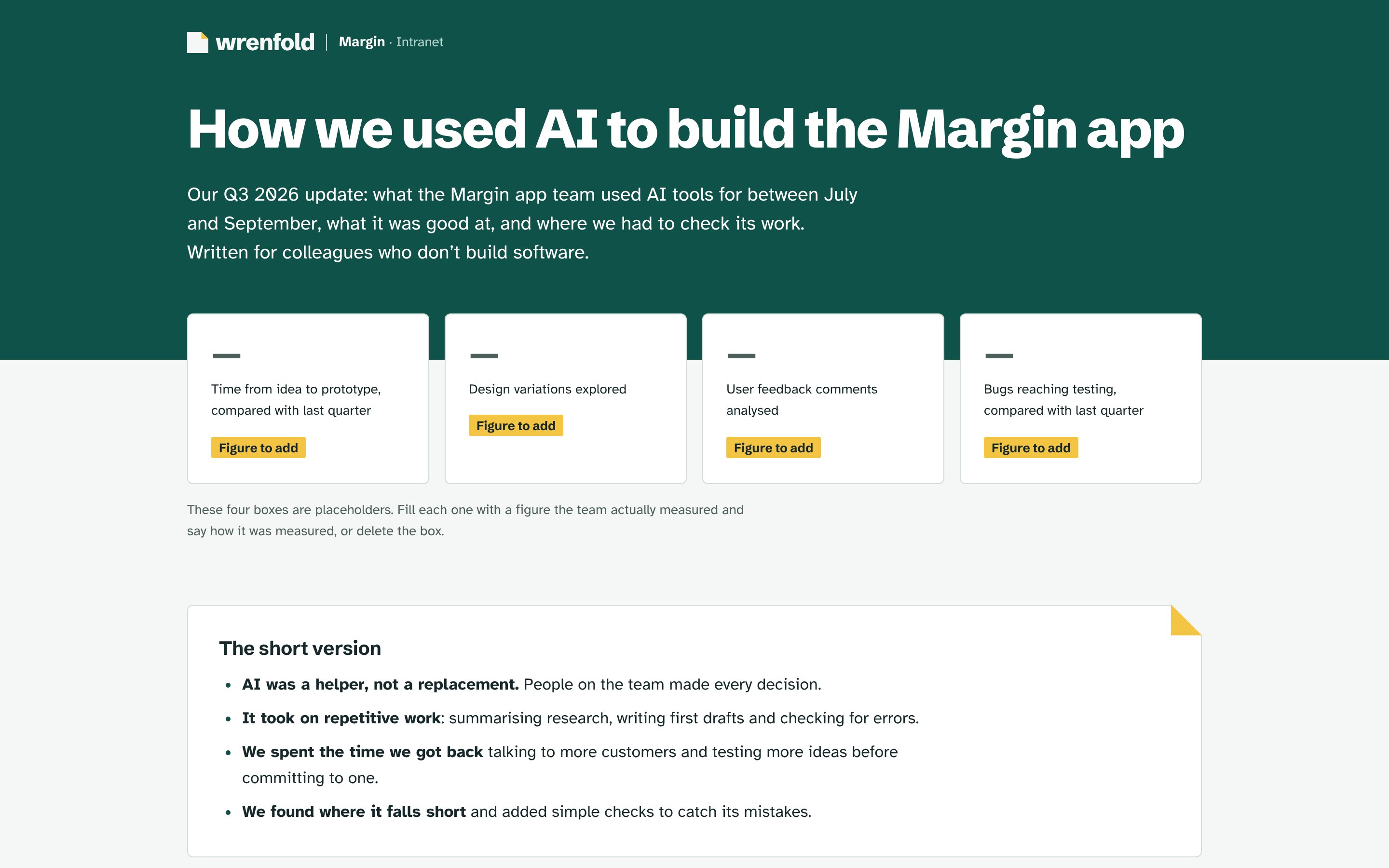
Here’s what that looks like in practice. I gave the cleaned intranet page from the test a one-page brand guideline for an invented company, wrenfold. Same sections, same words, same “Figure to add” gaps. Every change traces back to a rule in the guideline: the colours and type from its first two sections, sentence-case headings from its voice rules, and the highlighter yellow, whose only job is to mark what still needs someone.
Removing tells gets a page to neutral. A guideline with reasons attached is what makes it yours.
5. Remove the AI tells
Now the part everyone notices first. I ran the generated versions through my design skills kit, which includes Hallmark and Impeccable, two open-source skills built around exactly this problem, plus my own UI review rules. Between them they found 32 different tells across the three pages.
Here’s what they look like on the landing page. Each screenshot is numbered, with its key on the right.
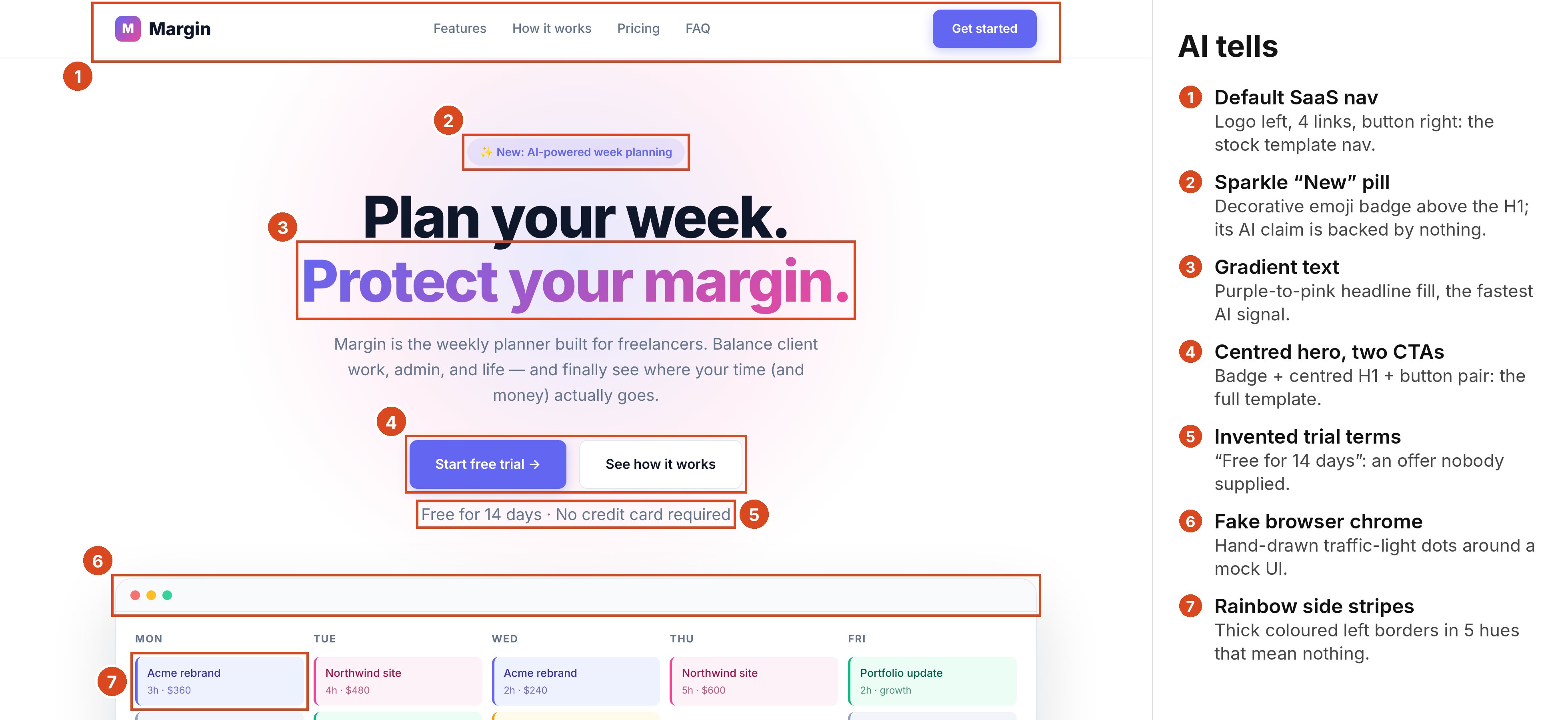
The landing page before you scroll. Seven tells: six visual, and one invented fact, the trial terms (5).
Open full size: The generated landing page, marked up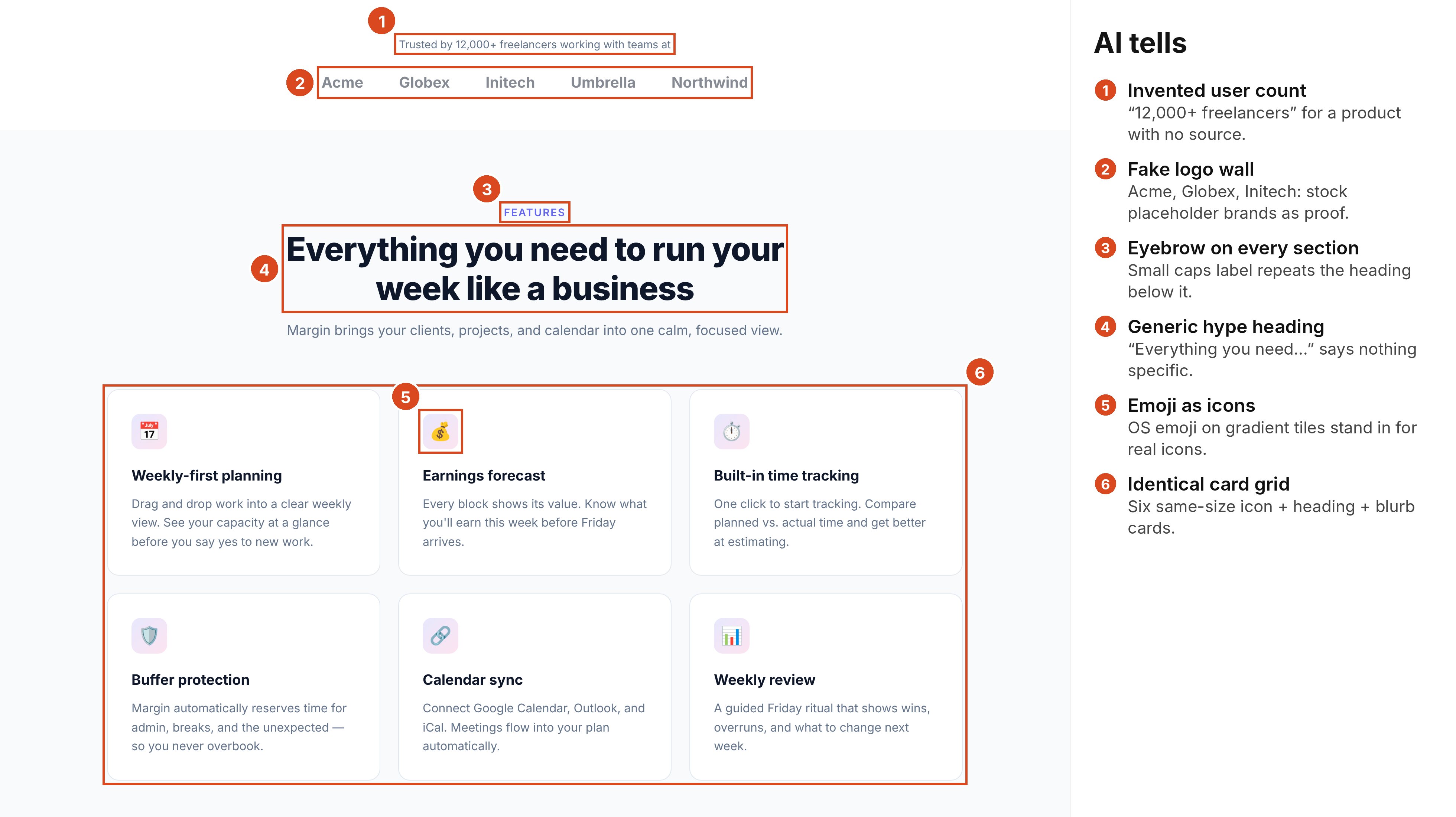
Further down. A user count (1) and a logo wall (2) for a product with no users, above a grid of identical cards (6).
Open full size: Proof that isn’tThey fall into the same three kinds as the live page above.
Visual tells. The ones you’ll recognise:
- Gradient text. Purple to pink on the key words. Hallmark calls the purple-gradient hero the most recognised AI look there is.
- The sparkle “New” pill. “✨ New: AI-powered” above the headline, for a feature the page never mentions again.
- The centred hero with two buttons. Pill, big centred headline, a main button and a second one. The whole template in one block.
- Fake browser frame. Three coloured dots drawn around a made-up screenshot.
- Emoji as icons. They look different on every device, and they tell everyone nobody chose an icon set.
- Identical card grids. Boxes of the same size, each with an icon, a heading and a line of text. Even plain lists get boxed.
- Rainbow side stripes. Coloured borders down the side of boxes, in five colours that mean nothing.
- The default nav. Logo left, links in the middle, a button on the right.
- An eyebrow on every section. A small capitals label, like “FEATURES”, that repeats the heading under it.
- Rules that don’t agree. Rounded corners and spacing that follow different logic, shadows too faint to show where one section ends, several accent colours with no rule for when each is used.
Copy tells. Lines that sound like marketing and say nothing: “Take back your week.” “Everything you need to run your week like a business.” “Faster, smarter, more creative.”
Invented facts. Anything the AI wasn’t given: the 14-day trial, “Trusted by 12,000+ freelancers”, a logo wall of made-up companies, integrations with Notion and Stripe, and every statistic.
Scanners only catch part of this. They’re good at visual tells in the code, like gradient text and coloured stripes. Emoji icons, sparkle pills and invented facts take a person who knows the rules and looks at the page.
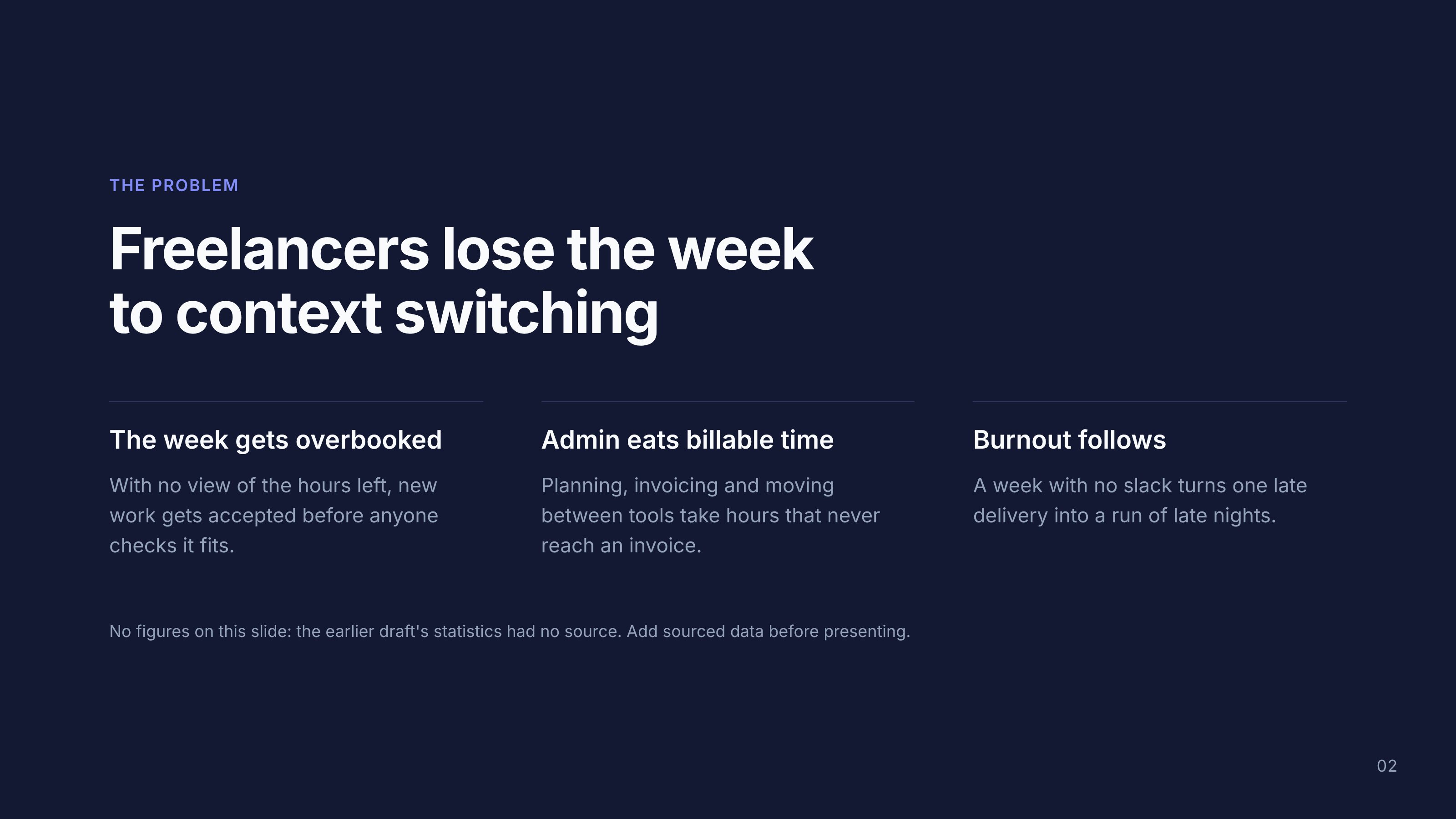
Invented facts do the most damage. A gradient makes a page look generic. A fake statistic makes it wrong, and because the page looks finished, it gets shipped. The intranet page and the deck are full of them.
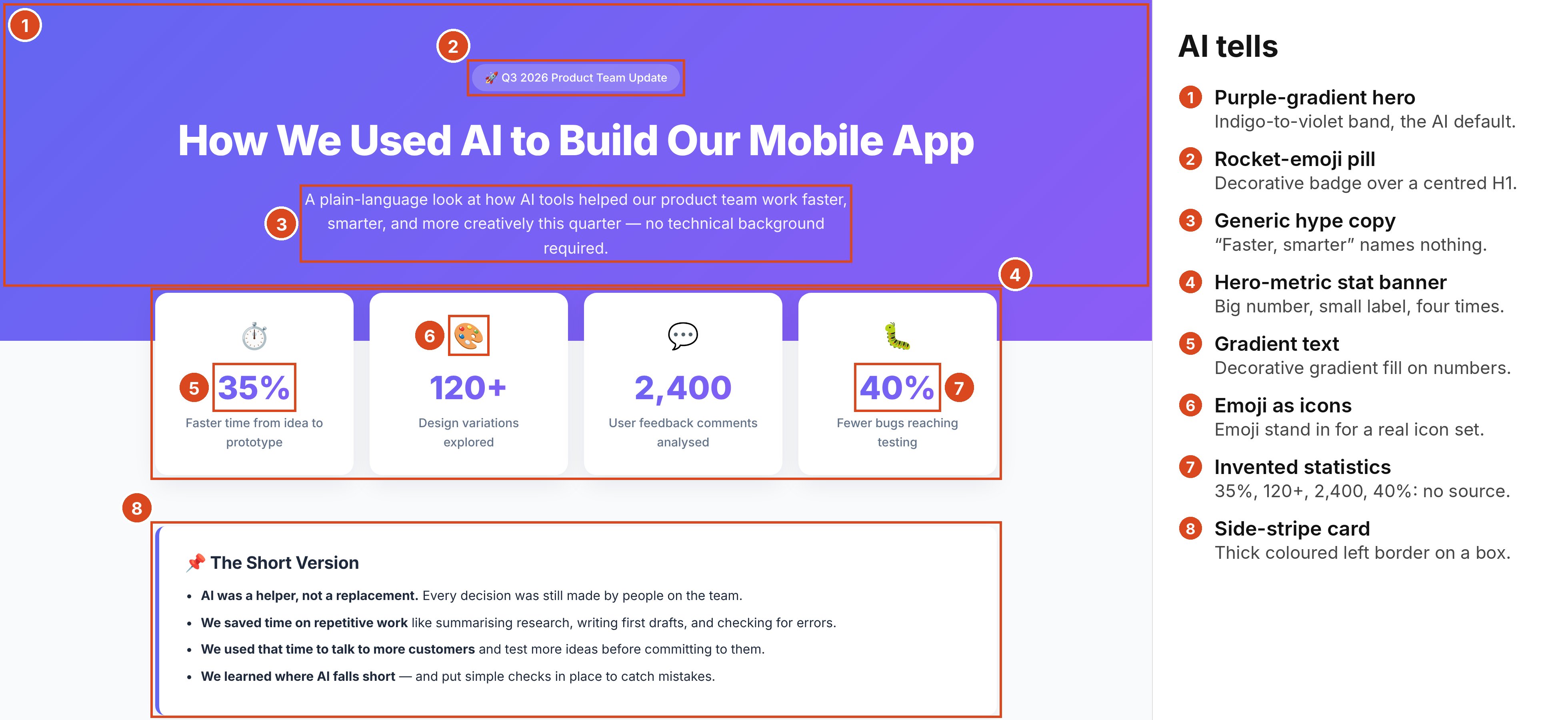
The intranet page. Four statistics, none of them measured (7), in gradient (5) under emoji icons (6).
Open full size: The intranet page, marked up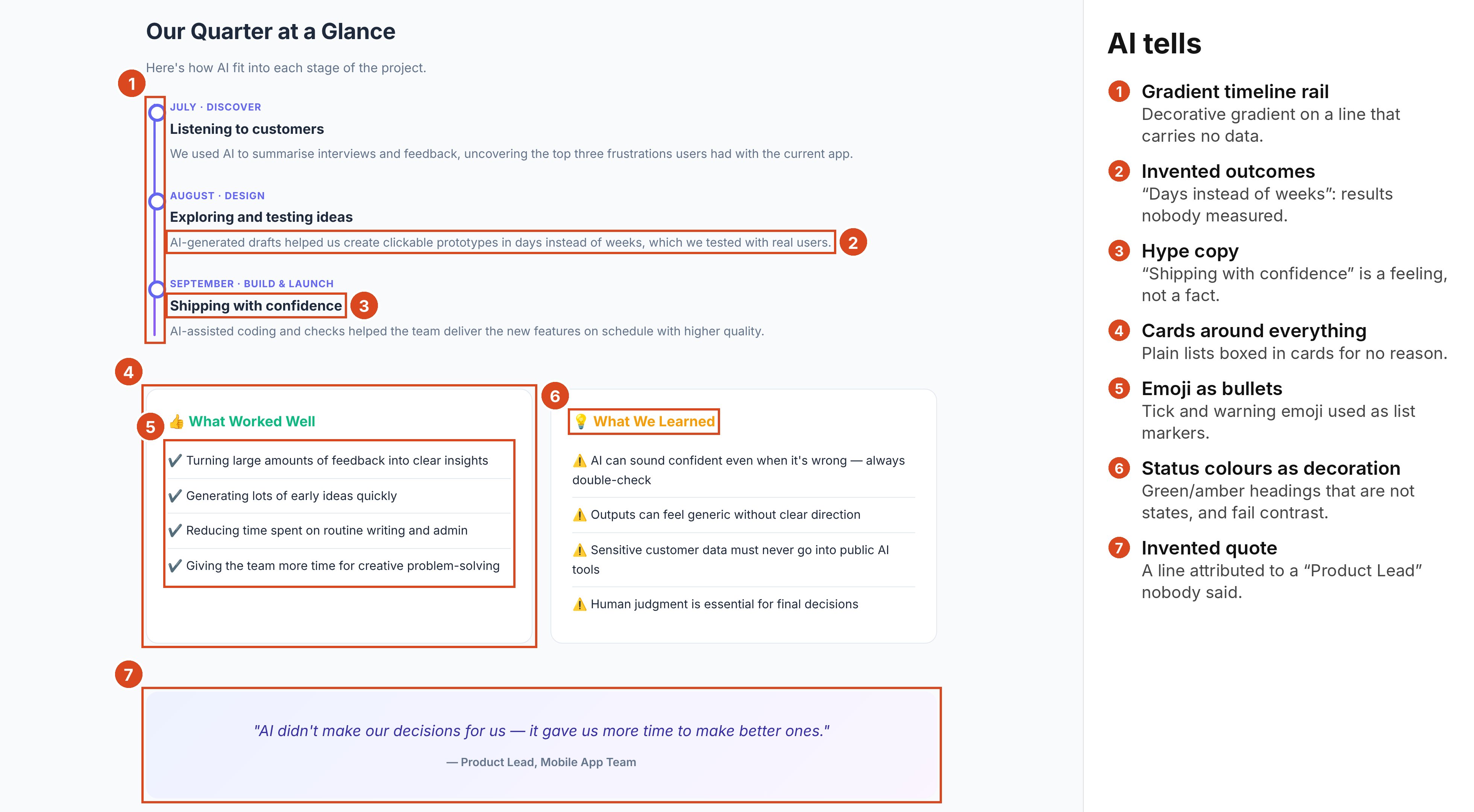
Further down. Outcomes nobody measured (2) and a quote nobody said (7), with emoji for bullets (5).
Open full size: Further down the intranet page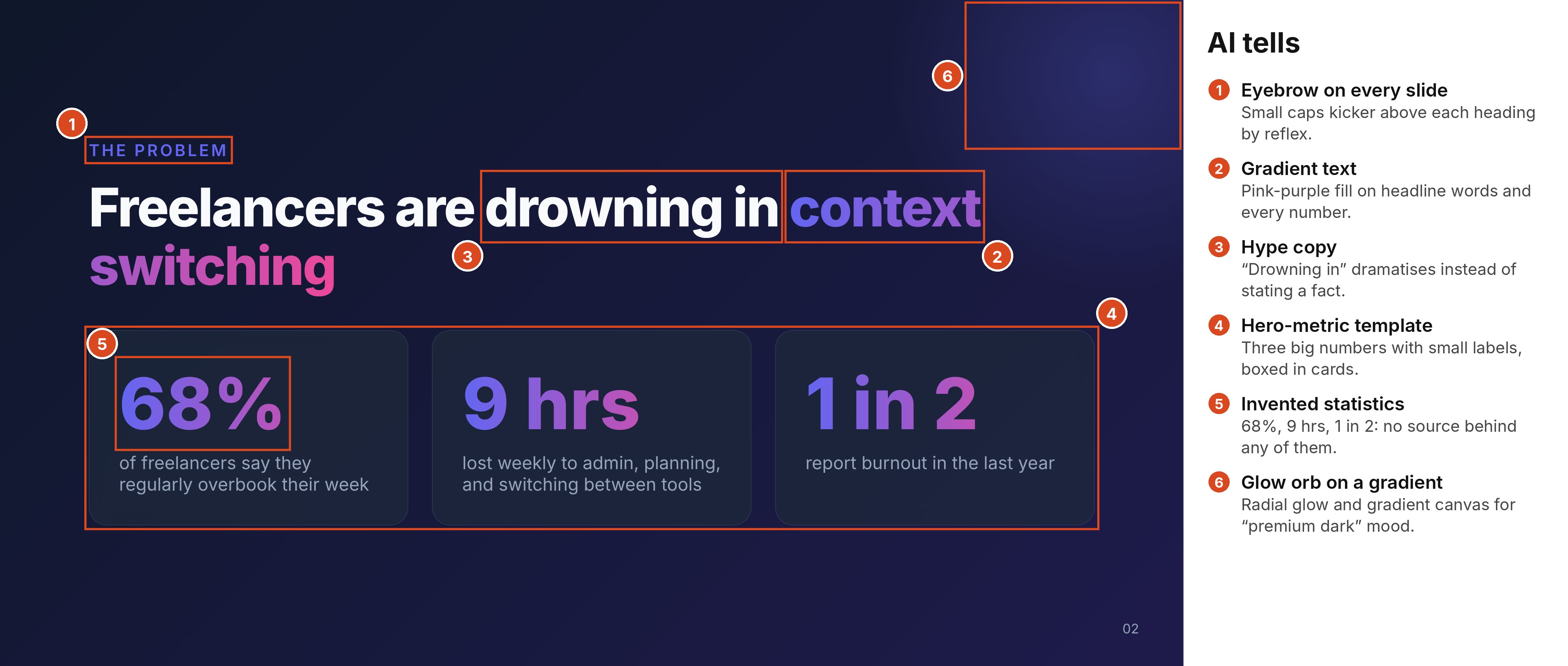
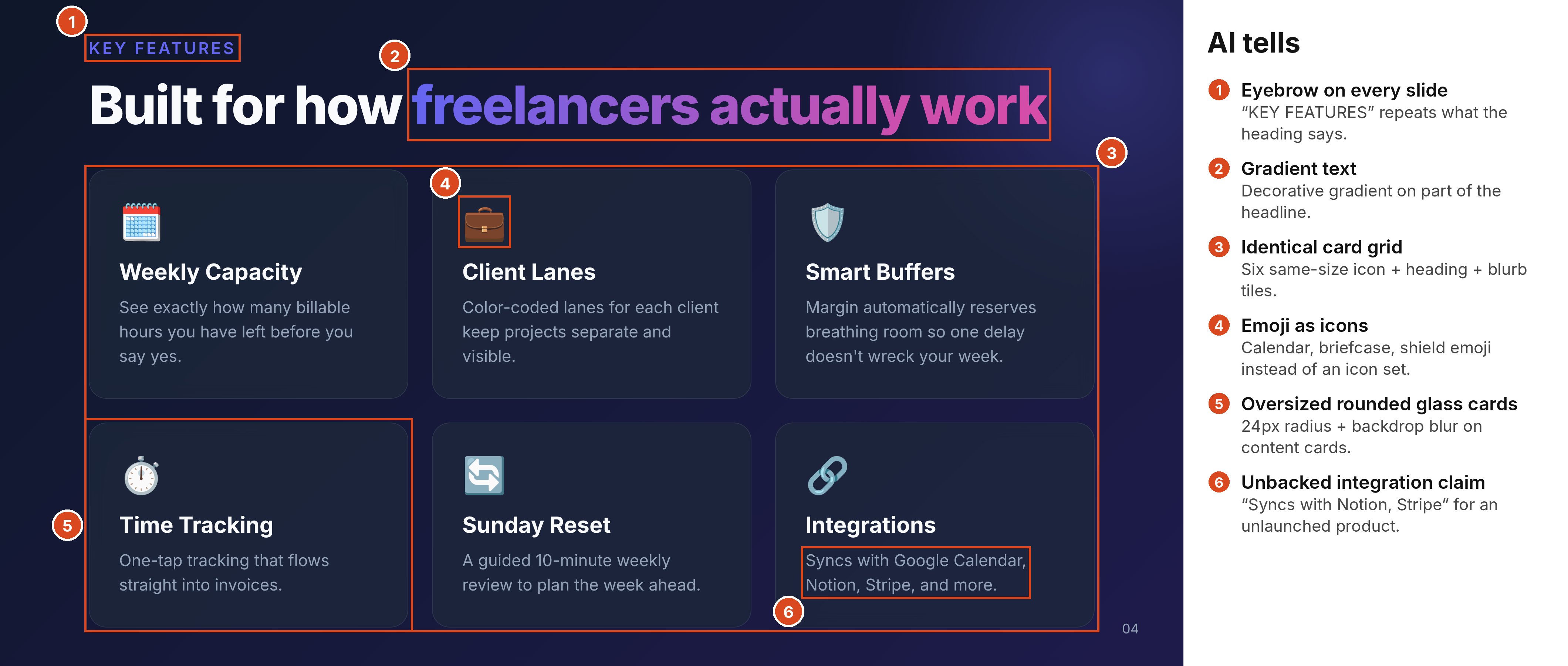
Removing the tells, and changing nothing else, fixes most of that. The invented numbers go, and the stat boxes say “Figure to add”, because the right number for an internal report is the one your team actually measured.
6. Get the fundamentals right
Removing tells is about what a page shouldn’t have. The fundamentals are what every good page needs, whoever made it:
- One thing wins the eye. Each screen has a clear first thing to look at and one main action. When every block gets the same weight, nobody knows where to look.
- Clear structure. Labels say what’s behind them. Related things sit together. No link goes nowhere (the generated landing page had eight that did).
- Contrast you can read. WCAG 2.2, the web accessibility standard, asks for at least 4.5:1 between text and background (3:1 for large text). The generated landing page failed this in 29 places, including the white text on its main button at 4.47:1. Close enough to look fine, still a fail.
- It works without a mouse. Visible focus states, real labels on form fields (not just placeholder text), text alternatives for images. And if a button is disabled, say why.
- Things you tap are big enough. WCAG’s minimum target is 24 by 24 pixels. Apple’s guidance is 44 by 44 points and Google’s Material Design says 48 by 48. If people use it on a phone, design for the thumb.
- No sideways scrolling on a small phone. Check at 320 pixels wide.
None of this is new, and that’s the point. AI doesn’t skip the basics on purpose. It just doesn’t check unless something makes it, which is why these rules sit in my skills as checks the AI has to run, not tips it might remember.
7. Make it look designed, not generated
Here’s the uncomfortable bit. The cleaned versions are better, but they still look like a template. Removing tells gets you clean. It doesn’t get you original.
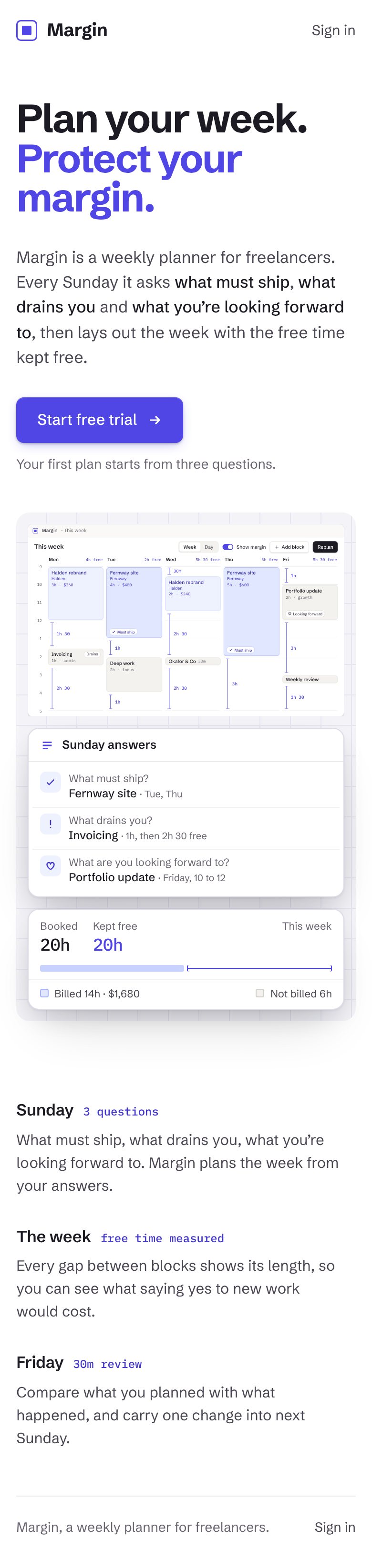
What made the designed version feel designed:
- An idea from the subject. Margin is about keeping room in your week, so the hero shows it: every free gap in the week is measured, like the clearances on an architect’s drawing.
- The real product, not a mock-up. A believable app window with a sidebar, controls and two small panels, built from the same example week. No fake browser frame, no made-up dashboard.
- A deliberate type pairing. A grotesk with character for the headline and the interface, and a monospace used only for times and money.
- Balance on purpose. Text and product as equals, side by side, instead of a centred headline stacked over a giant screenshot.
- Real content. Every number comes from the example week. Nothing invented.
- Restraint. Hallmark’s own principle says it well: the strongest fail-state is silence. When in doubt, leave it out.
A note on the tools, because I rely on them. Hallmark and Impeccable are great at identifying, preventing and fixing AI tells, and they’re a big part of how I work. But removing tells is one step of eight, and a page can pass every check and still look like plenty of other pages. Getting to something that looks truly designed takes the rest of this list: a brief, references, a direction, a system, and an idea that comes from you and the subject.
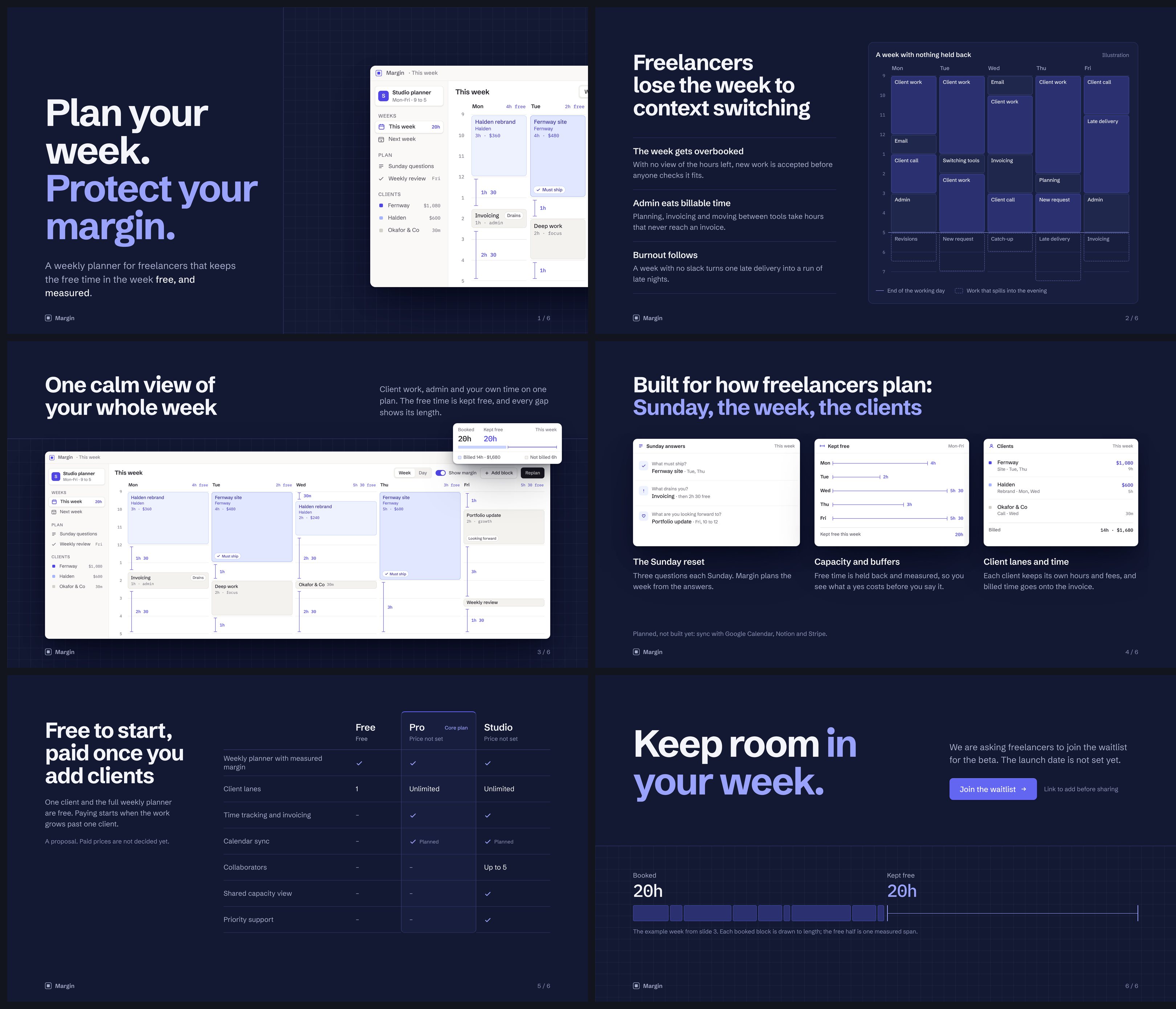
8. Review like a designer
The last step is the one people skip. After the build, review it in a fresh session against the same rules, as if someone else made it. Then you make the call.
I’ll be honest about my own test here: the reviews in it were run by the same AI session that made the changes, so they’re self-reviews. My process says that isn’t enough for anything that ships, and it isn’t. A fresh-eyed review, by a separate session or a person, catches what the maker can’t see.
And the final judgement is still yours. AI can check contrast, spacing and a list of tells. It can’t tell you whether the page feels right for the people it’s for. That’s taste, and taste is the job.
What I use
Everything above runs through my design skills kit: eleven skills covering direction, design systems, building, review, information architecture and the anti-slop checks from Hallmark and Impeccable. A design harness sits around it so the brief, the system and the rules apply every time, not just when I remember. I’m getting both ready to release, and they’ll be on this site when they’re out.
Take this with you
The 7-line brief
Paste it before your next design prompt:
1. Who it’s for:
2. What it must do (in order):
3. The one action:
4. Voice (+ one example sentence):
5. Colours and type:
6. Avoid (and why):
7. Done means:
Defaults to question. Each one needs a reason to stay:
- Gradient text or gradient backgrounds: only where the brand gives them a job
- Emoji as icons: pick one icon set and use it everywhere
- A badge above the headline: only if it announces something real
- Cards around everything: try grouping with space first
- Fake browser windows and fake logos: show the real thing, or nothing
- Numbers, prices or quotes I didn’t give you: this one really is never